How to Fix Android Battery Drain: 15 Easy Fixes
Is your Android phone losing battery faster than usual, even when you barely use it? If you’re wondering how to fix Android battery drain, start by identifying what’s consuming the most power. Background apps, high screen brightness, weak network signals, and software issues can all contribute to the problem.
These 15 practical solutions explain how to fix Android battery drain, reduce unnecessary power consumption, and make your phone last longer between charges.
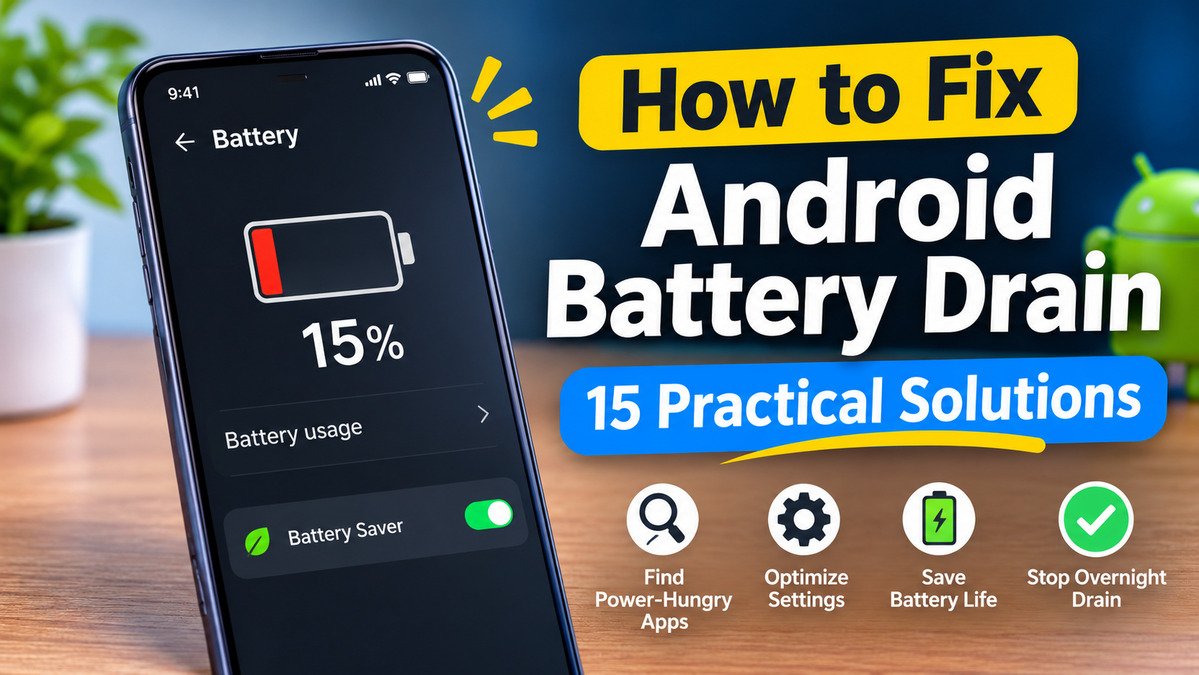
Why Is My Android Battery Draining So Fast?
Several factors can cause Android battery draining fast:
- Background apps: Some apps continue syncing data, accessing location, or performing tasks when you are not using them.
- High screen brightness: A bright display and high refresh rate can increase power consumption.
- Weak network reception: Your phone may use more power trying to maintain a mobile connection in areas with poor coverage.
- Software updates: Battery usage may temporarily increase after an update while the phone optimises apps and completes background tasks.
- Location services: Apps that frequently access your location can contribute to battery drain.
- Battery ageing: Older batteries gradually lose capacity and may not hold as much charge as they once did.
Identifying the cause is more useful than changing every setting at once.
How to Fix Android Battery Drain and its 15 Practical Solutions
Before trying other fixes, understanding how to fix Android battery drain starts with checking which apps and settings consume the most power.
1. Check Battery Usage
Open Settings > Battery > Battery usage and review which apps and system components consume the most power. Look for unusually high usage compared with how often you use an app. This helps you identify the likely cause before changing settings unnecessarily.
2. Restrict Apps With Excessive Background Activity
Open the information page for an app that uses too much battery and look for Battery or App battery usage. Choose an optimised setting or restrict background activity where appropriate. Be careful with messaging, accessibility, and security apps because restrictions may delay notifications or interfere with important functions.
3. Reduce Screen Brightness and Screen Timeout
Lower your brightness to a comfortable level or enable adaptive brightness. Then open Settings > Display > Screen timeout and choose a shorter duration, such as 30 seconds. Your screen will turn off sooner when you forget to lock your phone, reducing unnecessary power consumption.
4. Enable Battery Saver
Turn on Battery Saver or Power Saving mode when your charge is running low or you need your phone to last longer. Depending on your device, this feature may restrict background activity, reduce performance, and limit certain functions. You can usually find it under Settings > Battery or in Quick Settings.
5. Turn Off Always-On Display When Unnecessary
Always-On Display shows information such as the time and notifications while your screen appears off. Although its power consumption varies by device, disabling it may help reduce battery usage. Open your display or lock-screen settings and turn it off if you rarely use it. Some phones also offer scheduled display options.
6. Reduce Screen Refresh Rate if Available
A display running at 90Hz or 120Hz can provide smoother scrolling but may consume more power than a lower refresh rate. Open Settings > Display and look for Refresh rate or Motion smoothness. Choose Standard or 60Hz if available. The actual savings depend on your phone, display, and usage.
7. Review Location Permissions
Not every app needs continuous access to your location. Open Settings > Location > App location permissions and review which apps can access it. Change unnecessary permissions to Allow only while using the app, or deny access when it is not needed. Keep essential safety features working as intended.
8. Check Wi-Fi, Bluetooth, Hotspot, and Mobile Data
Turn off your mobile hotspot when nobody needs it and disconnect Bluetooth devices you are not using. Prefer a reliable Wi-Fi connection when practical. You do not need to disable every wireless feature constantly; focus on unnecessary connections and activities that repeatedly transfer data or maintain a connection.
9. Investigate Poor Network Reception
Weak mobile reception can increase power consumption as your phone tries to maintain a connection. If the signal is consistently poor, move somewhere with better coverage or use Wi-Fi calling if your carrier supports it. Airplane mode can help when you do not need calls or mobile connectivity, but it disconnects cellular service.
10. Update or Remove Problematic Apps
An outdated or malfunctioning app may repeatedly run background tasks. Open the Google Play Store, tap your profile picture, and select Manage apps & device to check for updates. If the drain began after installing an app, update it or temporarily uninstall it to test whether battery life improves. Avoid dubious battery-cleaner apps.
11. Check for Android Updates
Android updates may include bug fixes and improvements that address excessive battery consumption. Open Settings > System > Software updates, or find the equivalent option on your phone, and check for updates. Battery usage may temporarily increase after an update while the device completes background tasks. Allow a few days before evaluating the results.
12. Reduce Unnecessary Notifications and Background Sync
Frequent notifications can wake your display, while constant syncing can increase background activity. Open Settings > Notifications and disable alerts you do not need. Review account sync settings and reduce unnecessary automatic updates where practical. Keep essential email, messaging, backup, and security functions enabled if you depend on them.
13. Use Dark Mode on OLED or AMOLED Displays
Dark mode can help save power on OLED and AMOLED screens because darker pixels generally consume less energy. Open Settings > Display > Dark theme or Dark mode and enable it. The benefit depends on your screen, brightness, and content. On traditional LCD displays, dark mode usually provides much less battery-saving benefit.
14. Restart Your Phone
Restarting can resolve temporary software glitches or background processes that behave abnormally. Open the power menu and select Restart. After your phone boots up, use it normally and check Battery usage again. A restart is a useful troubleshooting step, but it will not fix a worn-out battery or a persistent app problem by itself.
15. Check Battery Health and Seek Professional Repair if Needed
If your phone still loses charge unusually quickly, check its battery diagnostics if available. Frequent unexpected shutdowns, poor charging performance, and significantly reduced battery life may indicate battery ageing. Consider a professional assessment if the problem persists.
Important: If your battery is swollen, the casing is lifting, or the phone shows signs of battery damage, stop using and charging it. Do not press or puncture the battery. Seek professional service immediately.
Settings vary by Android version, manufacturer, and model. Battery-saving results also depend on your phone and usage.
How to Fix Android Battery Drain Overnight
If your phone loses a noticeable amount of charge while you sleep, try these troubleshooting steps:
- Check battery usage in the morning. Look for apps or system components consuming power while the phone was idle.
- Review background apps. Update or restrict apps showing unusually high background usage.
- Check network reception. Poor mobile coverage may contribute to overnight drain. Try a location with better reception or Airplane mode if you do not need calls or mobile connectivity.
- Enable Battery Saver. This can reduce background activity and help preserve charge overnight.
- Repeat the test. Restart your phone and compare battery usage over another night under similar conditions.
Some overnight battery consumption is normal because your phone maintains essential services. If the drain remains unusually high, investigate further rather than assuming the battery is faulty.
Frequently Asked Questions
Why is my Android battery draining so fast all of a sudden?
Sudden battery drain may be caused by a malfunctioning app, a recent software update, weak network reception, increased screen usage, or battery ageing. Check Battery usage first. If the problem started after an update, allow a few days for background optimisation to finish.
How do I stop Android battery drain overnight?
Check battery usage in the morning, restrict apps with excessive background activity, and enable Battery Saver. Poor network reception may also contribute. If you do not need calls or mobile connectivity, Airplane mode can help determine whether the mobile network is responsible.
Which Android settings save the most battery?
Lower screen brightness, shorten screen timeout, enable Battery Saver, and reduce the refresh rate if available. Dark mode may also help on OLED or AMOLED phones. The best combination depends on your display, apps, network reception, and usage.
Can apps drain battery in the background?
Yes. Some apps continue syncing data, accessing location, processing information, or maintaining connections when you are not actively using them. Check Battery usage to identify unusually high consumption, then update the app or restrict its background activity when appropriate.
When should I replace my Android battery?
Consider a professional battery assessment if your phone’s battery life has declined significantly, it shuts down unexpectedly, or charging becomes unreliable. If the battery is swollen or physically damaged, stop using and charging the phone and seek professional service immediately.
Conclusion
Learning how to fix Android battery drain starts with identifying the cause rather than changing every setting at once. Check Battery usage first, review background apps, reduce screen power consumption, and enable Battery Saver when needed.
If the problem continues, investigate network reception, update your software, and check the battery’s condition. Results vary by device, so change a few settings at a time and monitor the difference.
For more practical smartphone advice, explore the Android troubleshooting and technology guides on SudoViews.com.
Also read: How to Improve iPhone Battery Life: 10 Simple Tricks
Also read: How to Improve Battery Health of Android Phone (2026 Guide)
Follow SudoViews on Instagram for more quick tech tips and battery-saving advice.